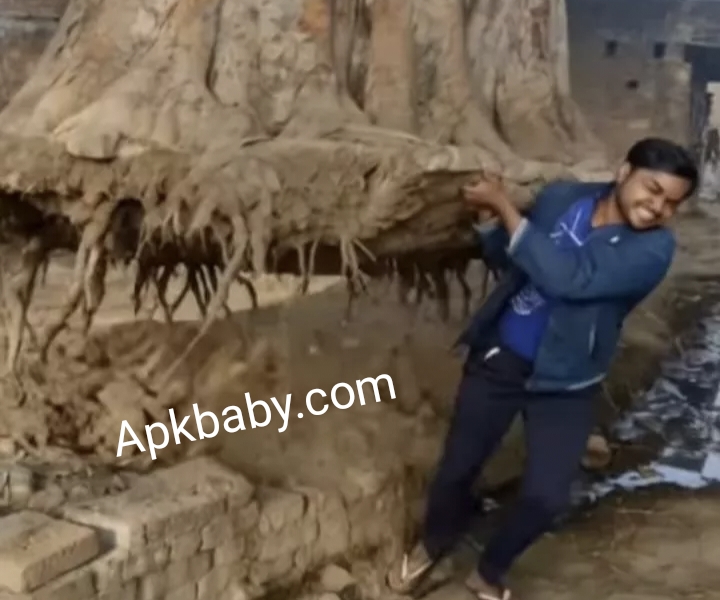
Tree Uproot AI Video Editing: Create Viral Videos with Ease
Friends, AI video editing has become so simple these days that a new viral video pops up almost every day. Most of these trending videos are created using AI tools, and once one video goes viral, people start recreating it in their own style.
One such viral video you may have seen shows a boy walking into the frame, suddenly uprooting a massive tree, lifting it onto his shoulders, and running away. The video looks incredibly realistic and funny—but the truth is, it’s made using AI. The best part? You can create the same type of video using just a single photo of yourself. In this article, I’ll explain everything step by step, so stay with me till the end.
What Is Tree Uproot AI Video Editing?
In this trending AI video, a boy appears at the start and uproots a huge banyan tree standing beside him. The tree looks extremely old and heavy—possibly over 100 years old. Yet, the boy lifts it effortlessly, places it on his shoulders, and starts running.
The video feels very realistic, as if it were shot in real life. This mix of realism and humor is why people love it so much. Using AI, you can create the same video with your own photo. We’ll be using an AI tool called Google Flow AI to generate this video, and the entire process is quite easy.
Details of the Tree Uproot AI Video
- The video is generated from a single image
- The AI animates the person in the photo
- A massive tree (or any heavy object) is shown being uprooted
- The final result looks realistic and entertaining
- The video is perfect for social media reels and shorts
All you need is the right photo and a proper AI prompt.
How to Select the Right Photo
Choosing the correct photo is very important for making the video look realistic.
Here are some tips for selecting your image:
- Take a photo of yourself standing near a large tree, building, or any big object
- Make sure your full body is visible
- The background should be clear and well-lit
Using a photo with a tree gives the best result, but you can also get creative. You may use an image where you’re standing next to a house, pole, or any heavy object—the AI will handle the rest.
Video Prompt Information
To generate the video, you’ll need to use a specific AI prompt. The prompt helps the AI understand what kind of action and animation you want.
First, copy the provided video prompt. In the next section, I’ll explain exactly where and how to paste it while generating your video.
Note: Some CapCut templates may not open in certain regions due to app restrictions. If the template button doesn’t work, try again later or open it directly through the official CapCut app. We are not affiliated with CapCut, and all rights belong to their respective owners. Links are shared only for user convenience.
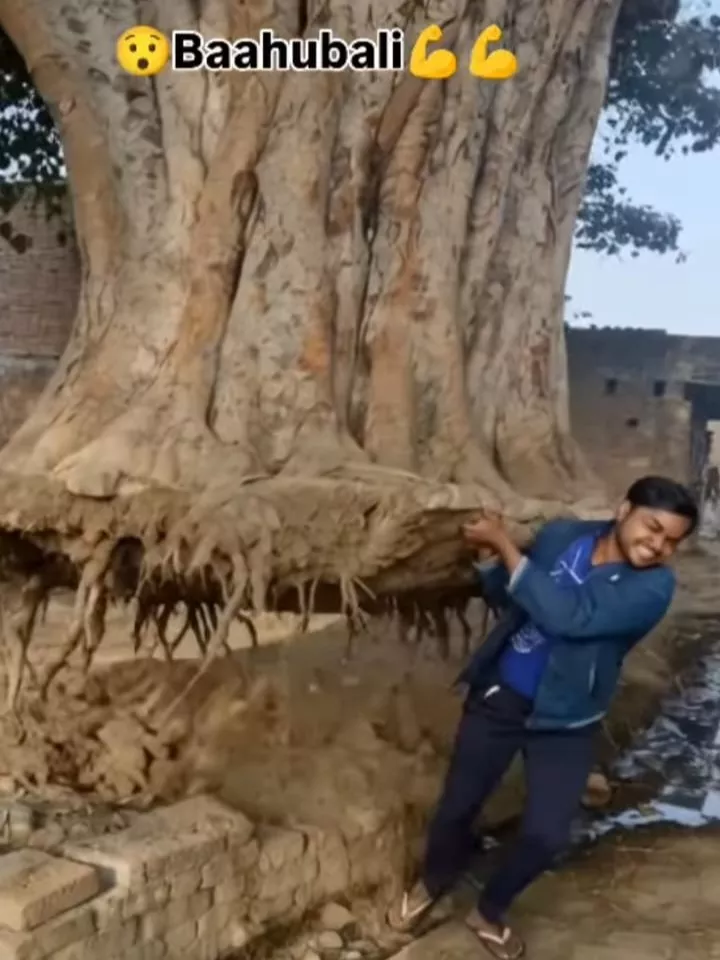
A highly realistic cinematic animation using my uploaded photo as the source, focus on the same tree visible in the photo. The main subject in the photo stands beside the tree. The ground begins to crack and shake slightly, soil particles breaking apart. With natural body motion, smooth breathing and realistic muscle movement, the subject pulls the tree from the ground using both hands. Roots detach gradually with dirt and broken soil falling down. The subject lifts the tree above shoulder height and walks forward, carrying it naturally. Smooth and physically accurate movements, subtle hair and cloth motion, shallow depth of field, camera tracking, soft sunlight, natural shadows, 4k hyper-realistic cinematic style, no exaggerated expressions.
How to Generate Your Tree Uproot AI Video
Follow these simple steps to create your AI video:
- Click on the Generate Video button
- You’ll be redirected to the Google Flow AI website
- Log in using your email address
- Click on Create Project
- On the dashboard, select Text, then choose Frame and Video
- Click the “+” icon to upload your photo
- Paste the copied video prompt into the text box
- Click on Generate
After a few moments, your AI video will be ready. The output will look realistic and similar to the viral tree-lifting videos you see online.
Conclusion
With the help of Google Flow AI, creating trending and viral AI videos has become incredibly easy. All you need is a good photo and the right prompt. If you’re not confident in writing prompts yourself, you can always copy ready-made prompts from our website, where new trends are shared first.
I’ve explained every step in simple language so that anyone can follow along without confusion. Now it’s your turn—try it out and create your own viral AI video. If you found this tutorial helpful, don’t forget to share this article with your friends. 🚀