How to Force Your Phone on Only 5G Mode (Complete Guide)
Table of Contents
- What is 5G Only Mode?
- Reasons For Switching Back To 4G/3G
- Why Your Phone Switches to 4G or 3G
- Top Methods To Force Your Phone On Only 5G Mode
- Method 1: Using Netmonitor App
- Method 2: Using Dial USSD Code To Update Network Settings
- Method 3: Using the 5G Switch App
- Method 4: Using Device’s Settings To Force Your Phone To Only 5G Mode
- Method 5: Using the 5G Only App
- How To Check 5G Bands Supported In Your Area
- Things to Know Before Forcing 5G Only Mode
- When Should You Force 5G Only Mode?
- Who Should Avoid 5G Only Mode?
- What If These Methods Don’t Work?
- Pros and Cons of 5G Only Mode
- How to Check Whether 5G Only Mode Will Work on Your Phone
- How 5G Only Mode Affects Calls and Messages
- Better Ways to Improve 5G Performance Without Forcing It
- In a Nutshell
- FAQs
What is 5G Only Mode?
The introduction of 5G technology has completely transformed the way people use mobile internet. Faster speeds, lower latency, and the ability to stream ultra-high-definition videos without buffering are just some of the advantages that make 5G attractive for smartphone users. Normally, modern smartphones automatically switch between different network types such as 5G, 4G LTE, or even 3G depending on signal strength and network availability. This automatic switching system is designed to provide the most stable connection possible while also preserving battery life and ensuring reliable calls and messaging services. However, in some situations, your smartphone may keep switching to slower networks even when strong 5G coverage is available. This is where the concept of 5G Only Mode becomes useful.
5G Only Mode is a network configuration setting that forces your smartphone to remain connected exclusively to a 5G network rather than switching between multiple network technologies. When enabled, the device prioritizes 5G signals and ignores other available networks such as LTE or 3G. This can help users maintain maximum internet speed, especially in locations where 5G signals are strong but the device still prefers LTE due to network management settings. By forcing the device into 5G mode, users can ensure consistent high-speed connectivity for tasks such as online gaming, large downloads, video streaming, and cloud applications.
However, using 5G Only Mode also has certain drawbacks. Because 5G networks consume more power and operate differently than LTE networks, forcing your device to remain connected to 5G can lead to increased battery usage and faster data consumption. Additionally, if the 5G signal becomes weak or temporarily unavailable, your phone may lose connectivity entirely instead of switching to a fallback network. Therefore, while this feature can be beneficial in certain situations, it should be used carefully and only when strong 5G coverage is available in your area.
Reasons For Switching Back To 4G or 3G
Many smartphone users notice that their devices frequently switch from 5G back to 4G LTE or even 3G networks. While this behavior can be frustrating, it is actually a normal part of how mobile networks operate. Smartphones are designed to prioritize stability and battery efficiency rather than always maintaining the fastest connection. When a device detects fluctuations in signal strength or network reliability, it automatically switches to the most stable network available. This is why your phone may move from 5G to LTE even if 5G coverage technically exists in the area.
One of the most common reasons for switching back to older networks is inconsistent signal strength. Although 5G networks offer extremely fast speeds, they often operate on higher frequency bands that have shorter coverage ranges compared to 4G. This means that buildings, trees, walls, and other obstacles can weaken the 5G signal. When your smartphone detects that the signal quality is poor, it automatically switches to LTE or 3G to maintain a stable connection for calls and data usage.
Another reason for network switching is device compatibility. Not all smartphones support every available 5G band used by telecom providers. If your device lacks support for a particular frequency band used in your region, it may struggle to maintain a stable 5G connection and therefore switch to LTE instead. Software versions also play a role. Older Android versions sometimes prioritize LTE because it is considered more reliable for voice calls and network stability.
Network congestion can also cause this issue. In crowded areas such as city centers, stadiums, or large public events, multiple devices compete for the same network resources. In these situations, carriers may automatically shift some users to LTE networks to balance traffic and maintain service quality. This intelligent network management helps prevent slow speeds and dropped connections, but it can also cause your phone to leave 5G unexpectedly.
Why Your Phone Switches to 4G or 3G
There are several technical and environmental factors that can cause your phone to revert to 4G or 3G networks. Understanding these reasons can help you decide whether forcing 5G Only Mode is the right solution for your situation. One major factor is the availability of 5G infrastructure in your region. Although many countries are rapidly expanding their 5G networks, coverage is still incomplete in many areas. Telecom operators often deploy 5G in dense urban locations first, while suburban and rural areas may continue relying primarily on 4G networks.
Another key factor is the type of 5G network being used. There are different forms of 5G deployment, including non-standalone (NSA) and standalone (SA) networks. In NSA networks, 5G relies partially on existing LTE infrastructure to function. This means your device may frequently switch between 5G and LTE as part of the network’s normal operation. In contrast, standalone 5G networks operate independently and provide a more stable 5G connection. However, standalone deployments are still limited in many regions.
Smartphone hardware limitations can also contribute to network switching. Even if your device supports 5G, it may only support specific bands such as n78 or n41. If your carrier primarily uses other frequency bands, your phone may struggle to maintain a connection. Additionally, smartphone manufacturers often include power-saving algorithms that deliberately switch to LTE when high speed is not necessary. For example, when you are simply browsing social media or sending messages, the device may prefer LTE to conserve battery life.
Carrier settings also influence network selection. Telecom companies configure smartphones to follow specific network priorities based on their infrastructure and performance goals. These settings ensure optimal performance for most users but may prevent your device from staying connected to 5G continuously. This is why some users choose to manually force their devices into 5G Only Mode using advanced settings or third-party apps.
Top Methods To Force Your Phone On Only 5G Mode
There are several ways to force your smartphone to remain connected to a 5G network. Some methods rely on hidden system settings, while others use third-party applications that simplify the process. The effectiveness of each method depends on your smartphone brand, Android version, and carrier restrictions. While some devices allow users to select network preferences directly from the settings menu, others require special codes or diagnostic tools to access advanced network options.
Before attempting any of these methods, it is important to ensure that your device actually supports 5G and that your mobile plan includes 5G access. Forcing 5G on a device that lacks compatible hardware or on a network that does not provide 5G coverage will simply result in connectivity problems or “No Service” errors. Therefore, always verify compatibility and coverage before making any changes.
Using Netmonitor App
The Netmonitor app is one of the most popular tools for accessing hidden cellular network settings on Android smartphones. It allows users to analyze signal strength, identify nearby cell towers, and modify network preferences. Many modern Android versions hide advanced network options from the standard settings interface, but Netmonitor can provide access to these hidden menus.
To use this method, you first need to download the Netmonitor app from the Google Play Store. After installing the app, launch it and look for the “Service Menu” or similar option within the interface. This menu opens the phone’s internal network diagnostics panel, which contains advanced configuration settings used by engineers and developers. Inside this panel, you will find a section called “Phone Info,” which displays detailed information about your device’s network connection.
Within the Phone Info menu, you will see an option labeled “Set Preferred Network Type.” This setting allows you to choose which network technologies your phone should prioritize. To force 5G Only Mode, select the option labeled “NR Only,” where “NR” stands for New Radio, the official technical name for 5G technology. Once selected, your smartphone will attempt to connect exclusively to a 5G network.
Using Dial USSD Code To Update Network Settings
Another method for forcing 5G Only Mode involves using a special diagnostic code built into Android devices. This hidden menu is often referred to as the Android testing menu and can be accessed by dialing a specific sequence of characters in the phone dialer. The code works on many Android devices and provides direct access to internal network settings.
To access this menu, open your phone’s dialer and enter the following code:
*#*#4636#*#*
Once the code is entered, the testing menu will appear automatically. From there, select the option labeled “Phone Information.” This section displays detailed data about your device’s current network status, including signal strength, radio technology, and network configuration options.
Within the Phone Information screen, locate the “Set Preferred Network Type” drop-down menu. This menu lists several combinations of network technologies supported by your device. To force your phone to use only 5G, select the option labeled “NR Only.” After applying this setting, your device will attempt to maintain a constant 5G connection.
However, it is important to be cautious when using this method. The testing menu contains sensitive system settings that can affect your phone’s connectivity. Selecting the wrong option may temporarily disable calls or mobile data until the settings are restored.
Using the 5G Switch App
If you find the previous methods complicated, you can use a dedicated application designed specifically to force network modes. One such app is the “5G Switch – Force 5G Only” app available on the Google Play Store. This app simplifies the process by providing a user-friendly interface that guides you through the steps required to enable 5G Only Mode.
After installing the app, open it and select your Android version from the available options. The app will then redirect you to the phone’s hidden network configuration panel, similar to the testing menu accessed through the USSD code. From there, you can easily change the preferred network type without navigating through complex system menus.
Inside the app, locate the drop-down menu for preferred network type and select “NR Only.” Once selected, your phone will attempt to connect exclusively to the 5G network. If 5G coverage is strong in your area, you should notice faster data speeds and improved performance for bandwidth-intensive activities.
However, if your location lacks stable 5G coverage, forcing the device to use 5G may result in signal loss or reduced connectivity. In such cases, you may need to return to the default network mode to restore normal service.
Using Device Settings To Force 5G
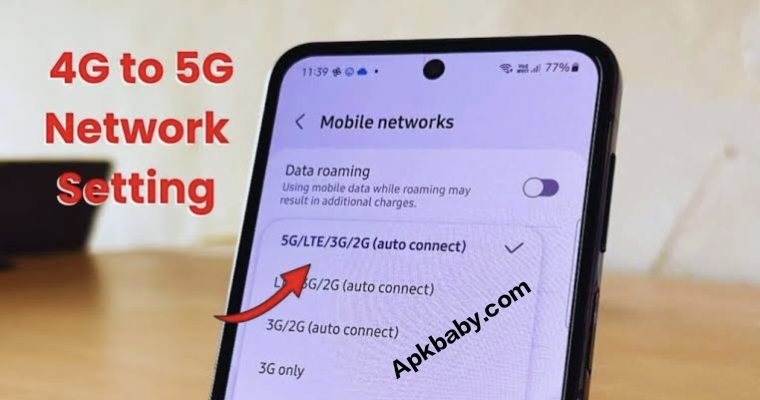
Some smartphones allow users to select their preferred network type directly through the device settings. The exact steps vary depending on the manufacturer and user interface, but the general process is similar across most Android devices.
For example, on many smartphones you can navigate to:
Settings → Mobile Network → Preferred Network Type
From there, select an option that prioritizes 5G connectivity, such as “5G/LTE/3G/2G (Auto)” or “Prefer 5G.” Certain devices also include a feature called Smart 5G, which automatically switches between 5G and LTE to save battery power. Disabling this feature may help maintain a more consistent 5G connection.
Different smartphone brands may use slightly different menu names or layouts. Devices from companies such as Samsung, Xiaomi, OnePlus, and Google Pixel typically provide some form of network preference setting within the SIM or mobile network section of the system settings.
{ “@context”: “https://schema.org”, “@type”: “FAQPage”, “mainEntity”: [ { “@type”: “Question”, “name”: “When will 5G pilot services start in Pakistan?”, “acceptedAnswer”: { “@type”: “Answer”, “text”: “Federal IT Minister Shaza Fatima Khawaja announced that 5G pilot services will begin next week in major cities, with full services expected in urban areas within the next few months.” } }, { “@type”: “Question”, “name”: “Which spectrum bands are being used for 5G in Pakistan?”, “acceptedAnswer”: { “@type”: “Answer”, “text”: “Pakistan’s 5G rollout uses the 2600 MHz and 3500 MHz bands, auctioned to telecom operators for optimal coverage and faster mobile internet speeds.” } }, { “@type”: “Question”, “name”: “How can I enable 5G on my mobile phone?”, “acceptedAnswer”: { “@type”: “Answer”, “text”: “For Android phones, go to Settings > Connections > Mobile Networks > Network Mode and select 5G/4G/3G/2G (Auto). For iPhones, go to Settings > Cellular > Cellular Data Options > Voice & Data and choose 5G Auto or 5G On. Ensure your phone firmware is updated and your SIM card supports 5G.” } }, { “@type”: “Question”, “name”: “Which cities in Pakistan will get 5G first?”, “acceptedAnswer”: { “@type”: “Answer”, “text”: “Major urban centers including Karachi, Lahore, and Islamabad will receive pilot 5G services first, followed by expansion to other cities in the coming months.” } }, { “@type”: “Question”, “name”: “What benefits will 5G Internet provide to users?”, “acceptedAnswer”: { “@type”: “Answer”, “text”: “5G Internet will deliver faster download and upload speeds, lower latency, smoother streaming, improved online gaming, real-time video conferencing, and support for IoT devices, making mobile and business connectivity faster and more reliable than 4G.” } }, { “@type”: “Question”, “name”: “Do I need a new SIM card for 5G on apkbaby.com apps?”, “acceptedAnswer”: { “@type”: “Answer”, “text”: “Yes, to use 5G on mobile apps downloaded from apkbaby.com, your device must have a 5G-enabled SIM card. This ensures compatibility with 5G network bands and optimal performance when using high-speed mobile applications.” } } ] }