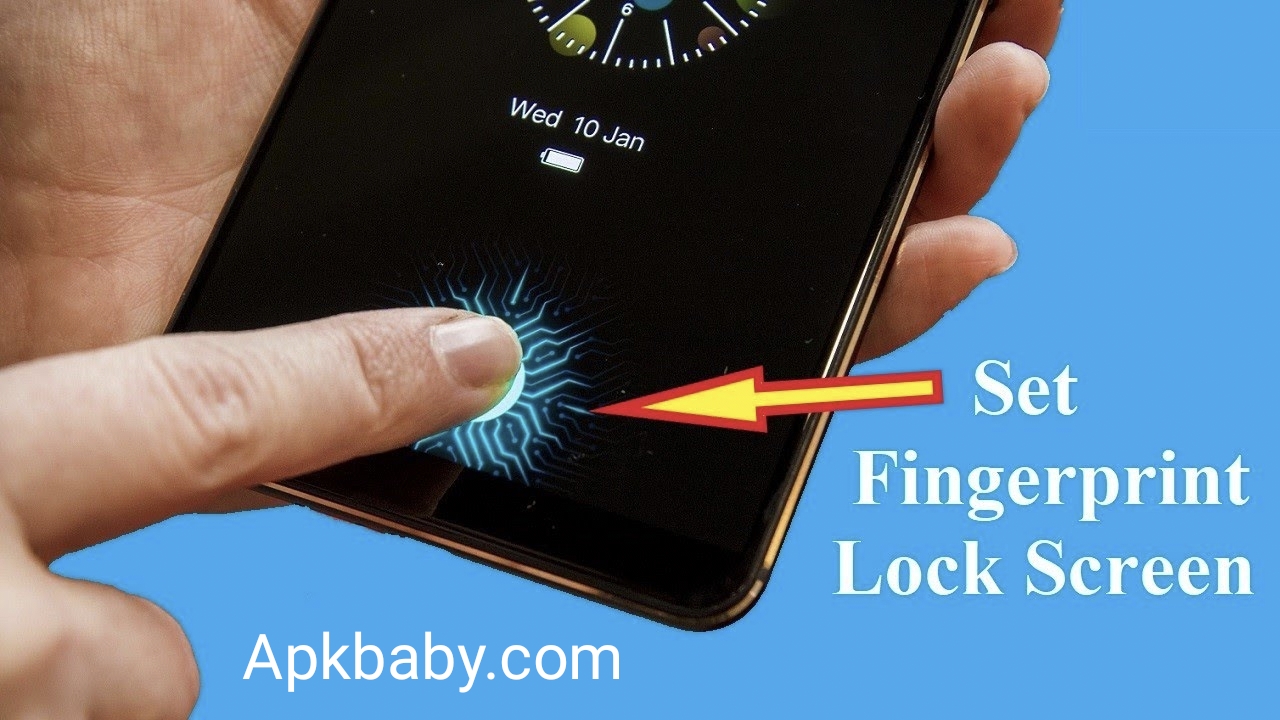
How to Set a Display Fingerprint Lock on Your Android Phone
In today’s digital world, keeping your smartphone secure is more important than ever. One of the easiest and most reliable ways to protect your device is by using a fingerprint lock. It eliminates the need to remember passwords or PINs and lets you unlock your phone instantly with just a touch.
Setting up a display fingerprint lock on an Android phone is quick and straightforward. Follow the steps below to get started.
Check If Your Phone Supports a Fingerprint Sensor
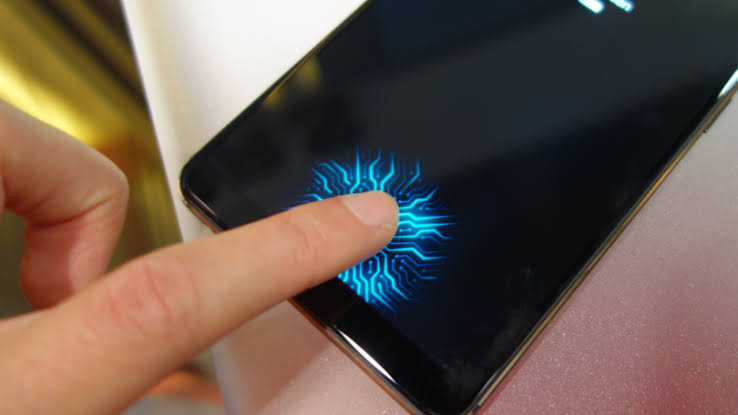
Before setting anything up, confirm that your Android phone has a fingerprint sensor. Most modern devices include one, typically located:
- Under the display
- On the side of the phone
- On the back panel
If your phone doesn’t have a fingerprint scanner, this feature won’t be available.
Open the Settings App
Unlock your phone and open the Settings app. You can usually find it by tapping the gear icon in your app drawer or by swiping down from the top of the screen and selecting Settings.
Go to Security or Biometrics Settings
Scroll through the Settings menu and look for Security, Biometrics & Security, or a similar option. The name may vary depending on your phone’s brand and Android version. Tap on it to access security-related features.
Register Your Fingerprint
Under the security settings, select Fingerprint, Fingerprint Recognition, or Fingerprint Scanner.
- You’ll be asked to enter your existing PIN, pattern, or password for verification.
- Place your finger on the fingerprint sensor and lift it repeatedly as instructed.
- Make sure to use the same finger you plan to unlock your phone with regularly.
This process helps the sensor capture your fingerprint accurately.
Enable Display Fingerprint Lock Features
Once your fingerprint is registered, you can choose how it’s used. You may enable fingerprint access for:
- Unlocking your phone
- Approving payments
- Accessing secured apps
Follow the on-screen instructions to activate fingerprint unlocking for your display.
Get Fingerprint
Test the Fingerprint Lock
After setup is complete, lock your phone and try unlocking it using your registered finger. If configured correctly, your phone should unlock instantly.
Final Thoughts
Setting up a display fingerprint lock on your Android phone is a smart way to enhance security while saving time. It’s fast, convenient, and highly secure. For even better accessibility, consider registering multiple fingerprints so you can unlock your phone with either hand.
Your phone’s security is now literally at your fingertips 👆📱
